Web Studio Introduction
Web Studio is a comprehensive website creation tool that enables organizations to build and deploy everything from single embedded pages to complex standalone websites, combining user-friendly visual editing with professional code access.
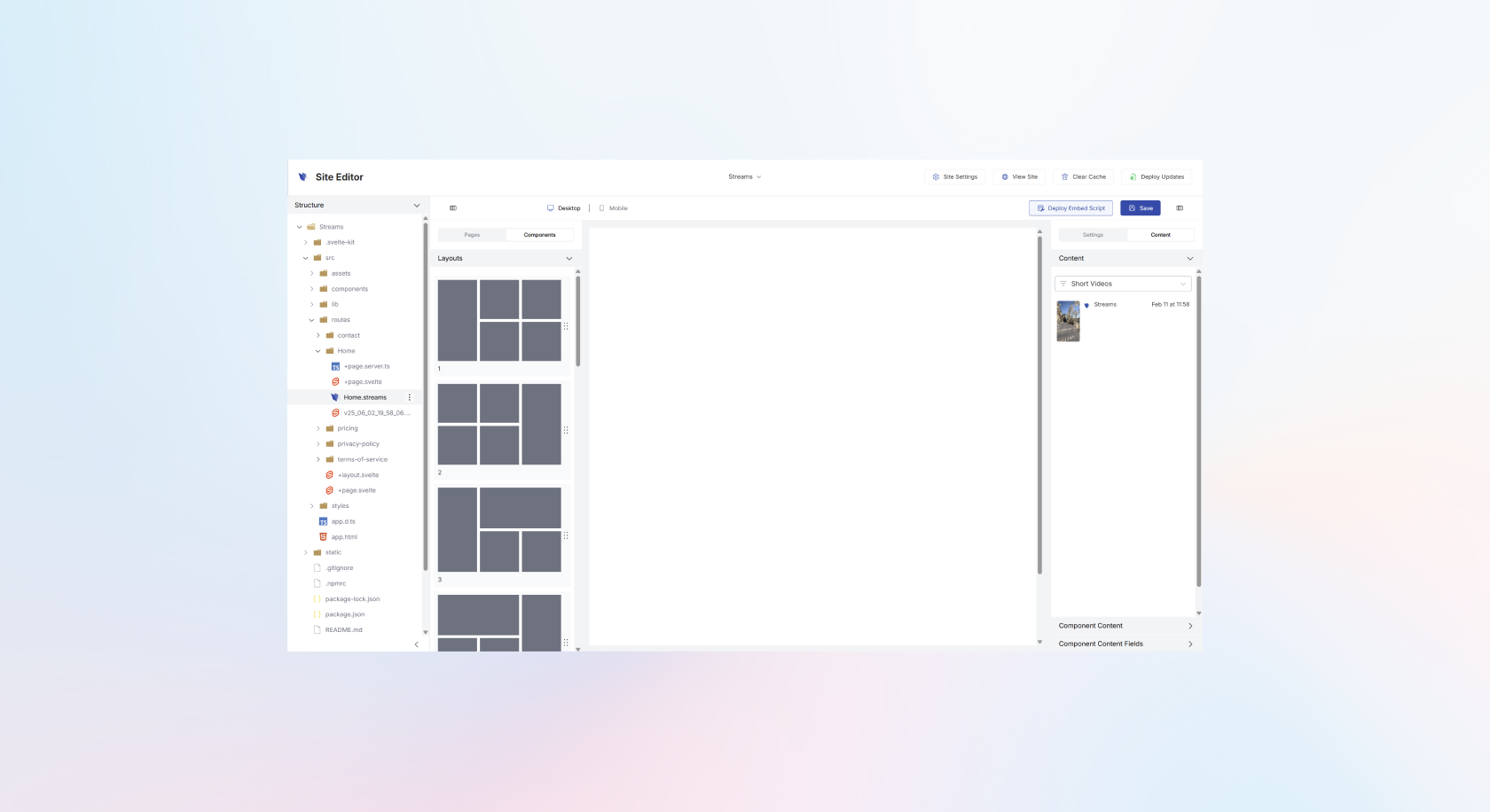
What is Web Studio?
Web Studio is a versatile platform that bridges the gap between no-code simplicity and developer flexibility. It offers both a drag-and-drop interface for non-technical users and a full code editor for developers, all within the same environment.
Core Capabilities
Dual Editing Modes
Switch seamlessly between visual drag-and-drop editing and direct code editing, accommodating both technical and non-technical team members on the same project.
Flexible Deployment Options
Deploy your creations as embeddable content for integration into existing websites, or as complete standalone sites hosted on Streams infrastructure.
Component-Based Architecture
Build with reusable components that have customizable parameters, ensuring consistency while maintaining flexibility across your projects.
Streams Integration
Native support for displaying your Streams content, creating cohesive experiences that leverage your existing content strategy.
Key Features
Drag-and-Drop Editor
The visual editor provides an intuitive interface for building pages without coding knowledge:
- Component Library - Access pre-built components with customizable parameters
- Layout System - Structural elements that contain and organize components
- Content Assignment - Easily place content including Streams, articles, and products
- Visual Configuration - Adjust appearance and behavior through user-friendly controls
- Real-time Preview - See changes as you make them
Code Editor
Professional developers get full access to the underlying codebase:
- Complete File System - Browse and edit the entire project structure
- Svelte Framework - Built on modern web technologies
- Direct Code Access - Make advanced customizations beyond visual editor capabilities
- Integrated Workflow - Changes in code editor reflect in visual editor and vice versa
Content Management
Versioning System
- Create multiple versions of pages for testing or scheduled deployment
- Each version generates a separate page in the system
- Select a "base" version for scheduling functionality
- Test different approaches before going live
Scheduling
- Set specific dates for content to go live
- Automatic transitions between versions based on schedule
- Campaign-ready deployment for time-sensitive content
- Conditional display based on date parameters
Asset Management
- Upload and manage images and static assets
- Visual asset selection in drag-and-drop mode
- Direct file path references in code editor
- Organized file structure for easy maintenance
Technical Architecture
File Structure
Web Studio projects follow a clear organization:
- src/lib/components/ - Component library with .strmc parameter files and .svelte code
- src/routes/ - Page routes and .streams files that trigger visual editing
- static/ - Static assets like images and resources
Component System
Each component includes:
- .strmc file - Defines configurable parameters and options
- .svelte file - Contains the actual component implementation
- Parameter customization - Visual controls for non-technical users
Deployment Options
Embedded Deployment
Deploy changes to the embed script pipeline for integration into external websites:
- Updates propagate to all instances using the embed script
- Perfect for adding dynamic sections to existing sites
- Maintains consistency across multiple integration points
Standalone Deployment
Deploy complete websites to Streams-hosted infrastructure:
- Full control over the entire site experience
- Kubernetes-powered hosting for reliability and scale
- Direct updates to live environment
- Custom domain support
Use Cases
Marketing Campaigns
- Create dedicated landing pages for specific campaigns
- Build interactive product showcases
- Develop event-specific microsites
- Design conversion-optimized pages
Content Distribution
- Embed dynamic content sections into existing websites
- Create branded content experiences
- Build interactive storytelling pages
- Develop product catalog integrations
Corporate Websites
- Build complete company websites
- Create investor relations pages
- Develop partner portals
- Design recruitment microsites
Best Practices
Component Design
Create reusable components with well-defined parameters to ensure consistency and maintainability across projects.
Version Control
Use the versioning system for major changes and time-sensitive campaigns to test thoroughly before deployment.
Local Development
For complex visual changes, develop locally first to take advantage of faster iteration cycles.
Asset Optimization
Compress and optimize images before uploading to ensure fast loading times across all devices.
Parameter Definition
Create meaningful parameter definitions in .strmc files to make components user-friendly for non-technical team members.
Integration with Platform
Web Studio extends your organization's content publishing capabilities by:
- Displaying content from your Media Pages and Content library
- Integrating with your existing Streams and Short Videos
- Maintaining consistent branding across all touchpoints
- Providing analytics and performance insights
Getting Started
To begin with Web Studio, you'll need:
- Content Strategy - Know what you want to build and why
- Design Assets - Have your brand assets and images ready
- Technical Requirements - Understand whether you need embedded or standalone deployment
- Team Roles - Identify who will use visual editing vs. code editing
Web Studio empowers you to create professional websites and pages that seamlessly integrate with your content strategy, whether you prefer visual editing or direct code control.